

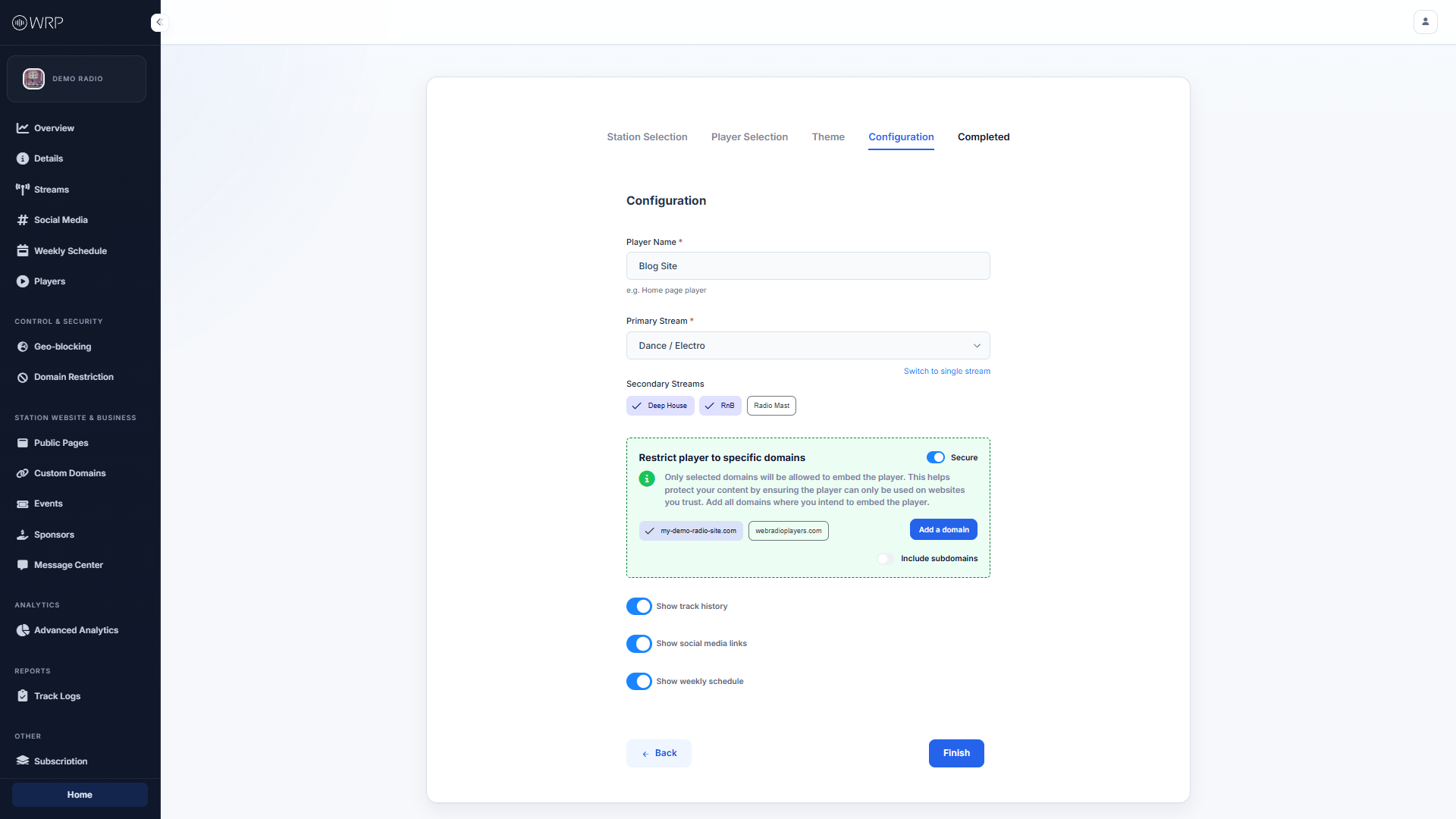
Audio Routing
Configure which streams your listeners can access directly from this widget:- Player Name: Give your player an internal name (e.g., Blog Site or Homepage Player). This is just for your own organization and won’t be visible to listeners.
- Primary Stream: Select the default audio stream that will play as soon as the user interacts with the player.
- Secondary Streams: If you want to offer a multi-channel experience, select additional active streams here. Listeners will see a menu inside the player allowing them to switch between these channels instantly.
- Note: If you only want a simple, one-channel widget, click the Switch to single stream link beneath the Primary Stream dropdown.
Domain Security
To protect your bandwidth and prevent third parties from embedding your player on unauthorized websites, we highly recommend utilizing the Domain Restrictions feature.- Toggle the Secure switch in the green box to the active position.
- Click Add a domain and enter the exact website address where you plan to embed this player (e.g.,
webradioplayers.com). - Include subdomains: Toggle this on if your site uses subdomains (like
blog.yourwebsite.comorshop.yourwebsite.com) so the player works seamlessly across your entire network.
Security Tip: If Domain Restrictions are enabled and someone attempts to paste your embed code on a non-approved website, the player will automatically block playback and refuse to load.
UI Feature Toggles
Depending on the layout you chose during the Player Selection step, you can toggle specific interface elements on or off to keep your widget looking perfectly clean:- Show track history: Displays a list of recently played songs so listeners can discover new music.
- Show social media links: Displays the clickable icons you set up on your Social Media page.
- Show weekly schedule: Displays your upcoming broadcast calendar based on your configured Weekly Schedule.