> ## Documentation Index
> Fetch the complete documentation index at: https://docs.webradioplayers.com/llms.txt
> Use this file to discover all available pages before exploring further.
# Weekly Schedule
> Create reusable radio programs and assign them to time slots to build your public-facing station calendar.
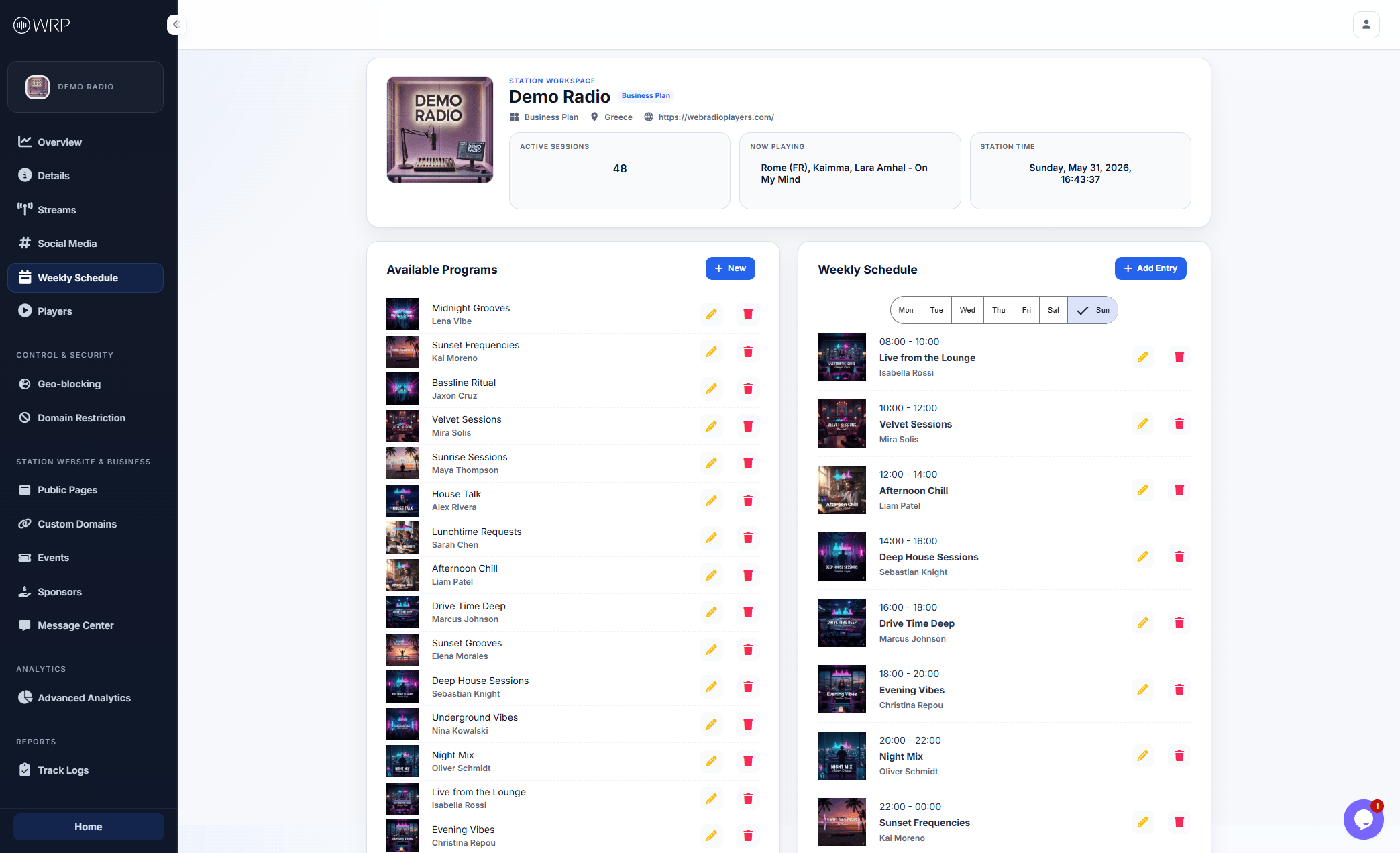
The **Weekly Schedule** page is where you build out your station's programming grid. This interface is designed around a simple two-step workflow: first, you create your roster of **Available Programs**, and then you assign those programs to specific days and times.
Just like your social media links, any changes you make to your schedule—whether it is updating a show's banner or shifting a time slot—are **instantly synced** to all your live web players and public pages!
 ## Step 1: Creating Available Programs
The left side of the dashboard acts as your library of shows. You only need to create a program once; after that, you can reuse it across as many days and time slots as you need.
To add a new show to your library, click the blue **+ New** button above the Available Programs list.
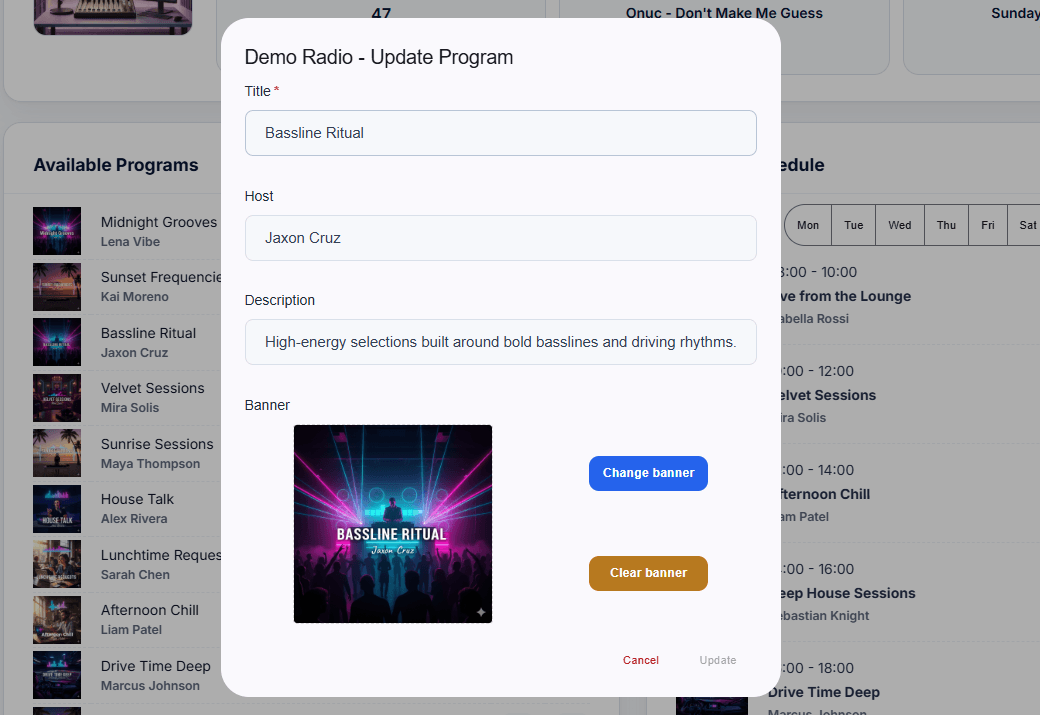
* **Title (Required):** The name of the show (e.g., *Bassline Ritual*).
* **Host:** The DJ, personality, or syndicator hosting the show.
* **Description:** A short summary of what listeners can expect. This helps listeners discover your content and improves SEO on your public pages!
Click **Change banner** to upload artwork for the show. This artwork will be displayed beautifully on your public pages and inside the expanded view of your web players when the show is currently live.
## Step 1: Creating Available Programs
The left side of the dashboard acts as your library of shows. You only need to create a program once; after that, you can reuse it across as many days and time slots as you need.
To add a new show to your library, click the blue **+ New** button above the Available Programs list.
* **Title (Required):** The name of the show (e.g., *Bassline Ritual*).
* **Host:** The DJ, personality, or syndicator hosting the show.
* **Description:** A short summary of what listeners can expect. This helps listeners discover your content and improves SEO on your public pages!
Click **Change banner** to upload artwork for the show. This artwork will be displayed beautifully on your public pages and inside the expanded view of your web players when the show is currently live.
 ## Step 2: Building the Weekly Schedule
Once your programs are created in the left column, you can start building your calendar on the right. You can easily filter your view to check your programming by clicking the day tabs (Mon, Tue, Wed, etc.) at the top of the schedule.
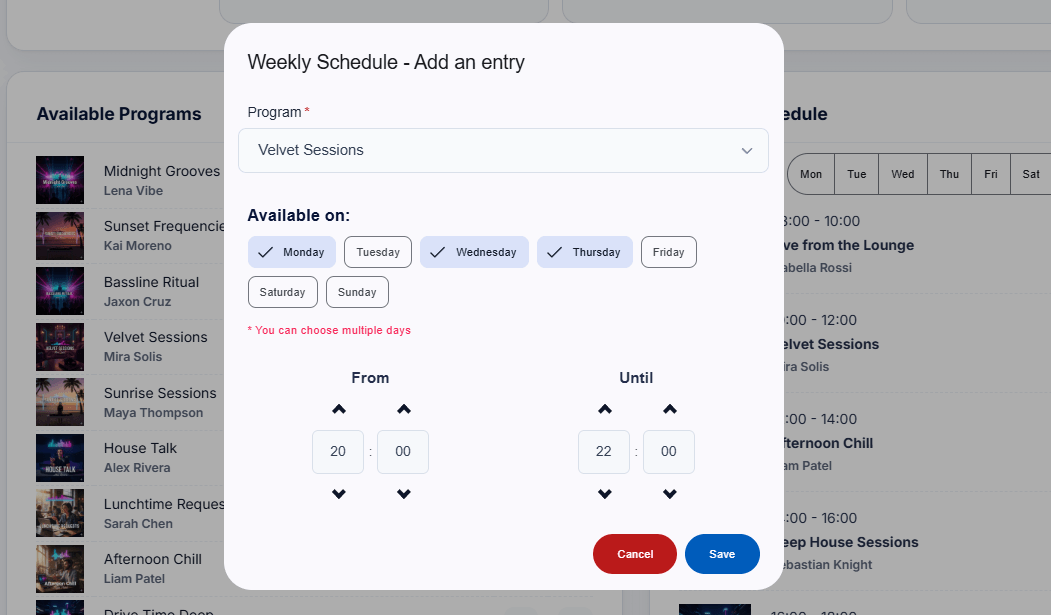
To assign a program to a time slot, click the **+ Add Entry** button in the top right.
Use the dropdown menu to choose one of the shows you created in your Available Programs library.
Select which days this specific time slot applies to.
*Pro-tip: You can select multiple days at once! If a show airs Monday through Thursday at the same time, just click all four days to bulk-create those entries in a single click.*
Use the **From** and **Until** arrows to set the exact broadcast hours for this entry.
## Step 2: Building the Weekly Schedule
Once your programs are created in the left column, you can start building your calendar on the right. You can easily filter your view to check your programming by clicking the day tabs (Mon, Tue, Wed, etc.) at the top of the schedule.
To assign a program to a time slot, click the **+ Add Entry** button in the top right.
Use the dropdown menu to choose one of the shows you created in your Available Programs library.
Select which days this specific time slot applies to.
*Pro-tip: You can select multiple days at once! If a show airs Monday through Thursday at the same time, just click all four days to bulk-create those entries in a single click.*
Use the **From** and **Until** arrows to set the exact broadcast hours for this entry.
 **Timezone Reminder:** The times you enter here are strictly based on the local **Timezone** you configured on the [Station Details](/station/details) page. Ensure your station's timezone is set correctly so your schedule triggers at the exact right moment for your listeners across the globe!