> ## Documentation Index
> Fetch the complete documentation index at: https://docs.webradioplayers.com/llms.txt
> Use this file to discover all available pages before exploring further.
# Social Media Links
> Connect your social profiles and control which icons appear on your players and public pages.
The **Social Media** page allows you to link your station's official profiles directly to your WebRadioPlayers widgets and public pages.
Because our platform relies on a centralized workspace, any changes you make on this page are **applied immediately** across the globe. If you update a handle or toggle a platform off, the changes sync instantly to all your live players—you never need to re-embed your HTML code!
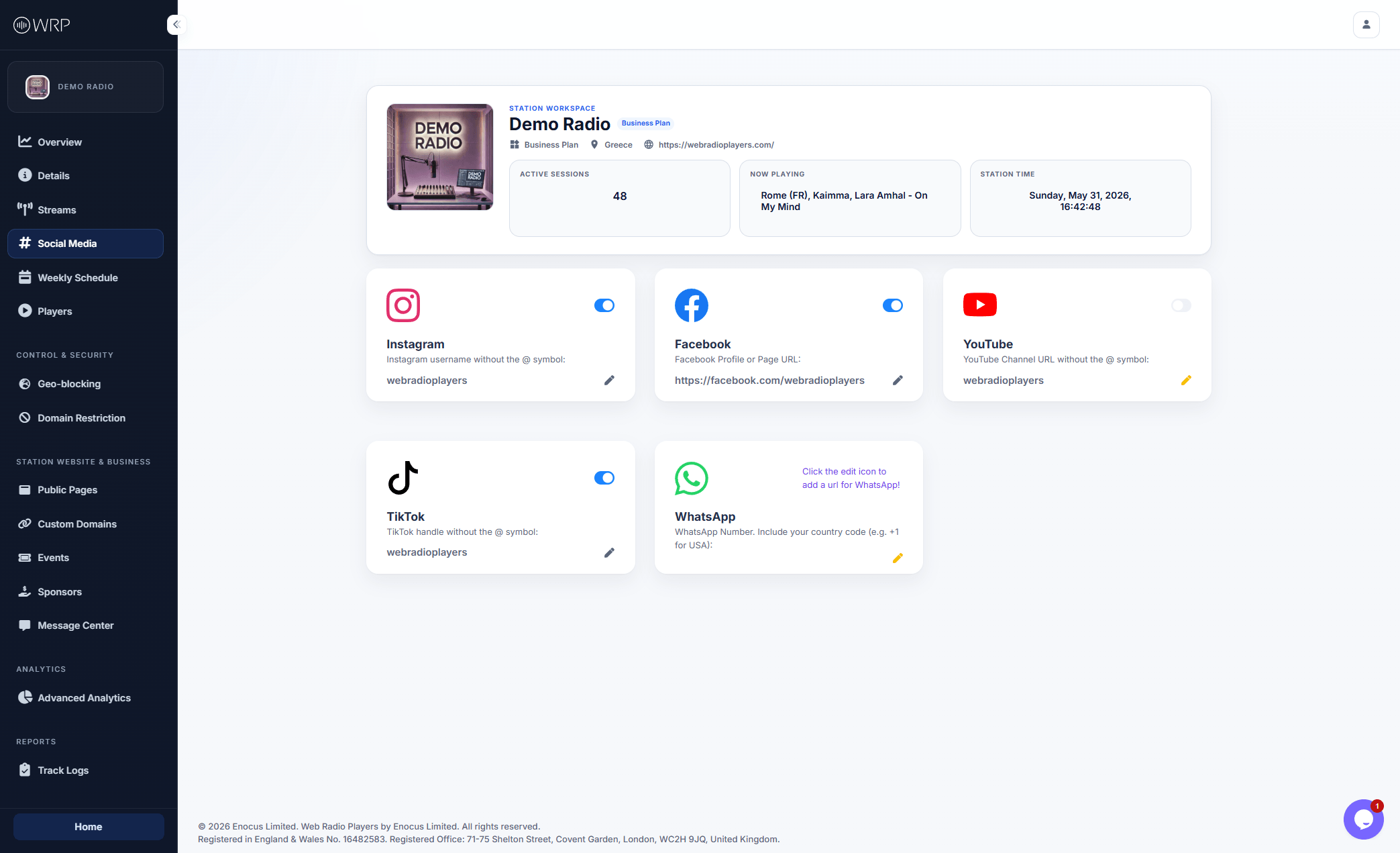 ## Supported Platforms & Formatting
To maintain a clean, standardized UI on your public players, we provide a fixed list of the most essential social networks (custom platforms cannot be added manually).
Each platform requires a specific text format to ensure the links route correctly for your listeners. To update a link, click the **pencil icon** on any card and follow these exact rules:
* **Instagram:** Enter just your username, without the `@` symbol (e.g., `webradioplayers`).
* **TikTok:** Enter just your username, without the `@` symbol (e.g., `webradioplayers`).
* **YouTube:** Enter just your channel handle, without the `@` symbol (e.g., `webradioplayers`).
* **Facebook:** Enter the full Profile or Page URL (e.g., `https://facebook.com/webradioplayers`).
* **WhatsApp:** Enter your full phone number including the country code, without the `+` symbol or any spaces (e.g., `15551234567` for a US number).
**Empty Fields:** If a card says *"Click the edit icon to add a URL"*, it means that social profile is currently empty. It will not display anywhere on your live pages, regardless of the toggle switch.
## Managing Visibility (On/Off Toggles)
You do not need to delete your information if you want to temporarily hide a social icon from your listeners (for example, if your YouTube channel is currently under construction).
Use the **toggle switch** in the top right corner of any platform's card to manage its visibility on demand:
* **Active (Blue):** The social icon will appear on all your enabled players and public pages.
* **Inactive (Gray):** The social icon is instantly hidden from your listeners, but your handle/URL is securely saved in the dashboard so you can reactivate it later.
## Supported Platforms & Formatting
To maintain a clean, standardized UI on your public players, we provide a fixed list of the most essential social networks (custom platforms cannot be added manually).
Each platform requires a specific text format to ensure the links route correctly for your listeners. To update a link, click the **pencil icon** on any card and follow these exact rules:
* **Instagram:** Enter just your username, without the `@` symbol (e.g., `webradioplayers`).
* **TikTok:** Enter just your username, without the `@` symbol (e.g., `webradioplayers`).
* **YouTube:** Enter just your channel handle, without the `@` symbol (e.g., `webradioplayers`).
* **Facebook:** Enter the full Profile or Page URL (e.g., `https://facebook.com/webradioplayers`).
* **WhatsApp:** Enter your full phone number including the country code, without the `+` symbol or any spaces (e.g., `15551234567` for a US number).
**Empty Fields:** If a card says *"Click the edit icon to add a URL"*, it means that social profile is currently empty. It will not display anywhere on your live pages, regardless of the toggle switch.
## Managing Visibility (On/Off Toggles)
You do not need to delete your information if you want to temporarily hide a social icon from your listeners (for example, if your YouTube channel is currently under construction).
Use the **toggle switch** in the top right corner of any platform's card to manage its visibility on demand:
* **Active (Blue):** The social icon will appear on all your enabled players and public pages.
* **Inactive (Gray):** The social icon is instantly hidden from your listeners, but your handle/URL is securely saved in the dashboard so you can reactivate it later.