> ## Documentation Index
> Fetch the complete documentation index at: https://docs.webradioplayers.com/llms.txt
> Use this file to discover all available pages before exploring further.
# Theme Selection
> Apply custom color palettes to match your player with your website branding.
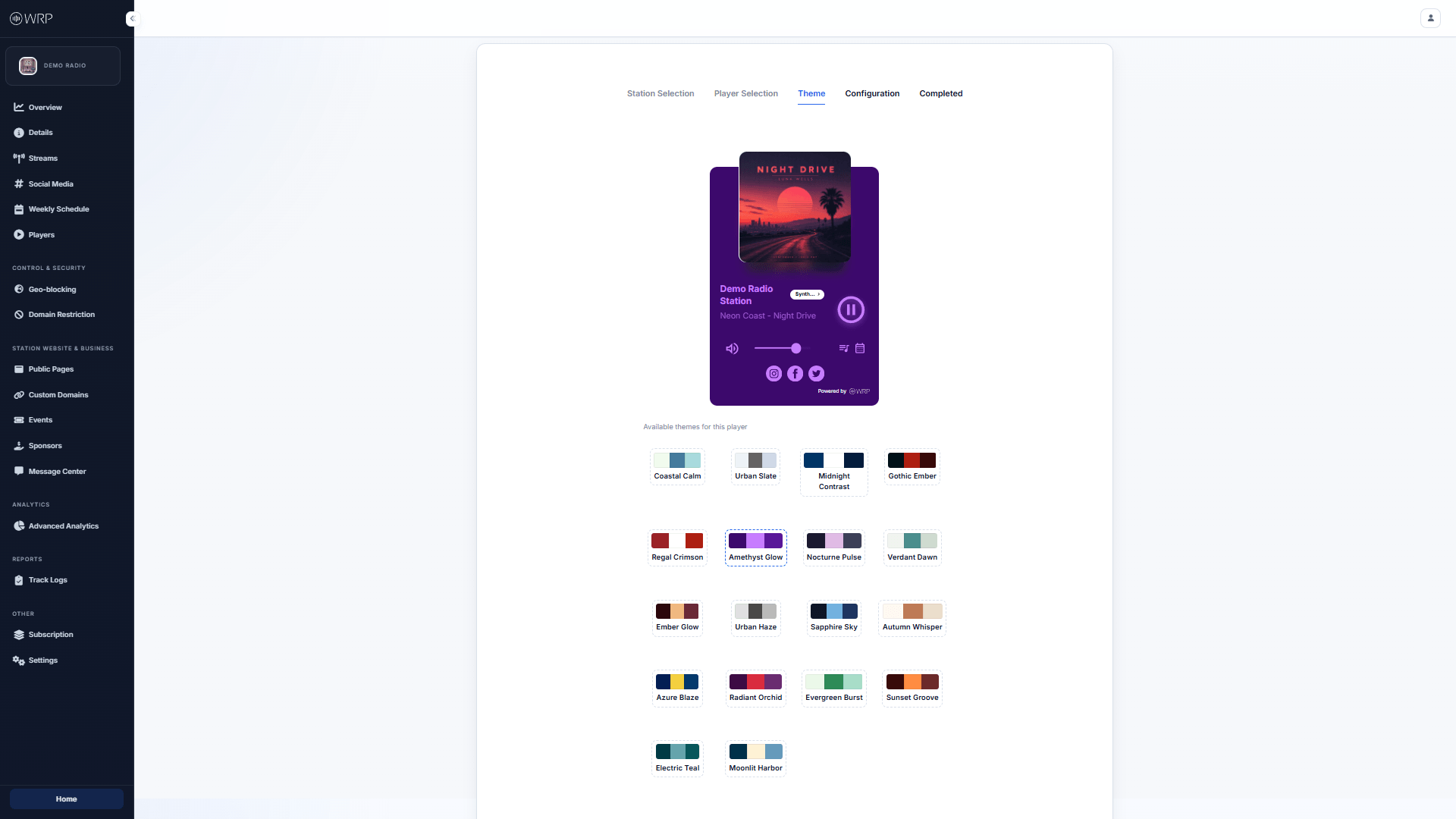
Once you have selected your base layout, the **Theme** step allows you to customize the visual appearance of your player. We provide a robust library of curated color palettes designed to ensure high contrast, accessibility, and visual appeal.
 ## Real-Time Preview
At the top of the screen, you will see a fully interactive live preview of your selected player. As you experiment with different themes, this preview updates instantly.
This allows you to see exactly how your choices affect the various UI elements, including:
* The main background container.
* The play/pause buttons and volume sliders.
* The typography and metadata text (artist and track names).
* Secondary elements like social media icons and schedule buttons.
## Applying a Theme
Below the preview, you will find the grid of **Available themes for this player**. Each theme card (e.g., *Amethyst Glow*, *Urban Slate*, *Coastal Calm*) displays its primary color swatches so you can easily identify the background, text, and accent colors before even clicking it.
To apply a theme:
1. Click on any theme card in the grid. The currently selected theme will be highlighted with a dashed border.
2. Review the changes in the live preview above to ensure it fits the vibe of your station.
3. Once you find the perfect match for your target website, click the blue **Continue** button at the bottom right to proceed to the Configuration step.
## Real-Time Preview
At the top of the screen, you will see a fully interactive live preview of your selected player. As you experiment with different themes, this preview updates instantly.
This allows you to see exactly how your choices affect the various UI elements, including:
* The main background container.
* The play/pause buttons and volume sliders.
* The typography and metadata text (artist and track names).
* Secondary elements like social media icons and schedule buttons.
## Applying a Theme
Below the preview, you will find the grid of **Available themes for this player**. Each theme card (e.g., *Amethyst Glow*, *Urban Slate*, *Coastal Calm*) displays its primary color swatches so you can easily identify the background, text, and accent colors before even clicking it.
To apply a theme:
1. Click on any theme card in the grid. The currently selected theme will be highlighted with a dashed border.
2. Review the changes in the live preview above to ensure it fits the vibe of your station.
3. Once you find the perfect match for your target website, click the blue **Continue** button at the bottom right to proceed to the Configuration step.