> ## Documentation Index
> Fetch the complete documentation index at: https://docs.webradioplayers.com/llms.txt
> Use this file to discover all available pages before exploring further.
# Player Selection
> Choose the foundational layout for your custom embeddable widget.
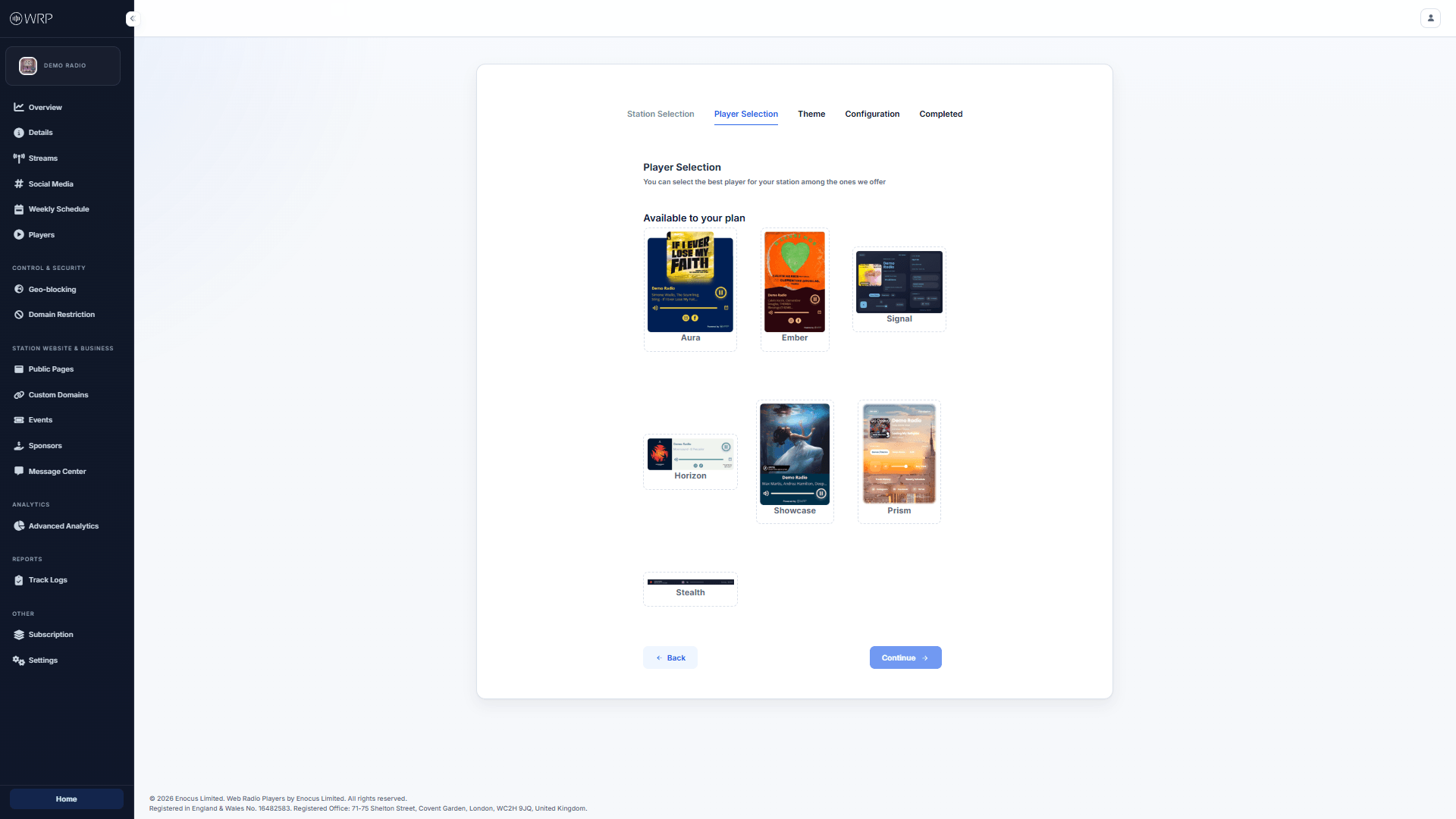
The first step in creating a new widget is choosing a base layout from the **Player Selection** screen.
We offer a variety of player styles to suit different use cases - from compact, minimalist bars designed to sit quietly at the bottom of a webpage, to large, feature - rich cards that display album artwork, social links, and schedules.
 ## Choosing a Layout
When you click the blue **+ New Player** button from your main Players dashboard, you will be presented with a grid of available layouts.
Take a moment to consider where you plan to embed this player on your website:
* **Vertical / Card Players (e.g., Aura, Ember):** Great for sidebars, popup windows, or dedicated "Listen Live" pages. These layouts typically have more room for artwork and expanded station information.
* **Horizontal / Bar Players (e.g., Stealth, Horizon):** Ideal for sticky footers or slim website headers where vertical space is limited.
## Plan Availability
The layouts available to you on this screen are determined by your current [Subscription Plan](/setup-station#the-setup-wizard).
If a specific player design is greyed out or locked, it means that layout is restricted to a higher subscription tier. You can upgrade your plan at any time from the **Billing** section of your Operations Console to unlock additional designs.
Once you have found a layout you like, simply click on it to select it, and then click the **Continue** button at the bottom right to move on to the Theme selection.
## Choosing a Layout
When you click the blue **+ New Player** button from your main Players dashboard, you will be presented with a grid of available layouts.
Take a moment to consider where you plan to embed this player on your website:
* **Vertical / Card Players (e.g., Aura, Ember):** Great for sidebars, popup windows, or dedicated "Listen Live" pages. These layouts typically have more room for artwork and expanded station information.
* **Horizontal / Bar Players (e.g., Stealth, Horizon):** Ideal for sticky footers or slim website headers where vertical space is limited.
## Plan Availability
The layouts available to you on this screen are determined by your current [Subscription Plan](/setup-station#the-setup-wizard).
If a specific player design is greyed out or locked, it means that layout is restricted to a higher subscription tier. You can upgrade your plan at any time from the **Billing** section of your Operations Console to unlock additional designs.
Once you have found a layout you like, simply click on it to select it, and then click the **Continue** button at the bottom right to move on to the Theme selection.