> ## Documentation Index
> Fetch the complete documentation index at: https://docs.webradioplayers.com/llms.txt
> Use this file to discover all available pages before exploring further.
# Player Configuration
> Fine-tune your player’s behavior, connect your audio streams, and configure security settings.
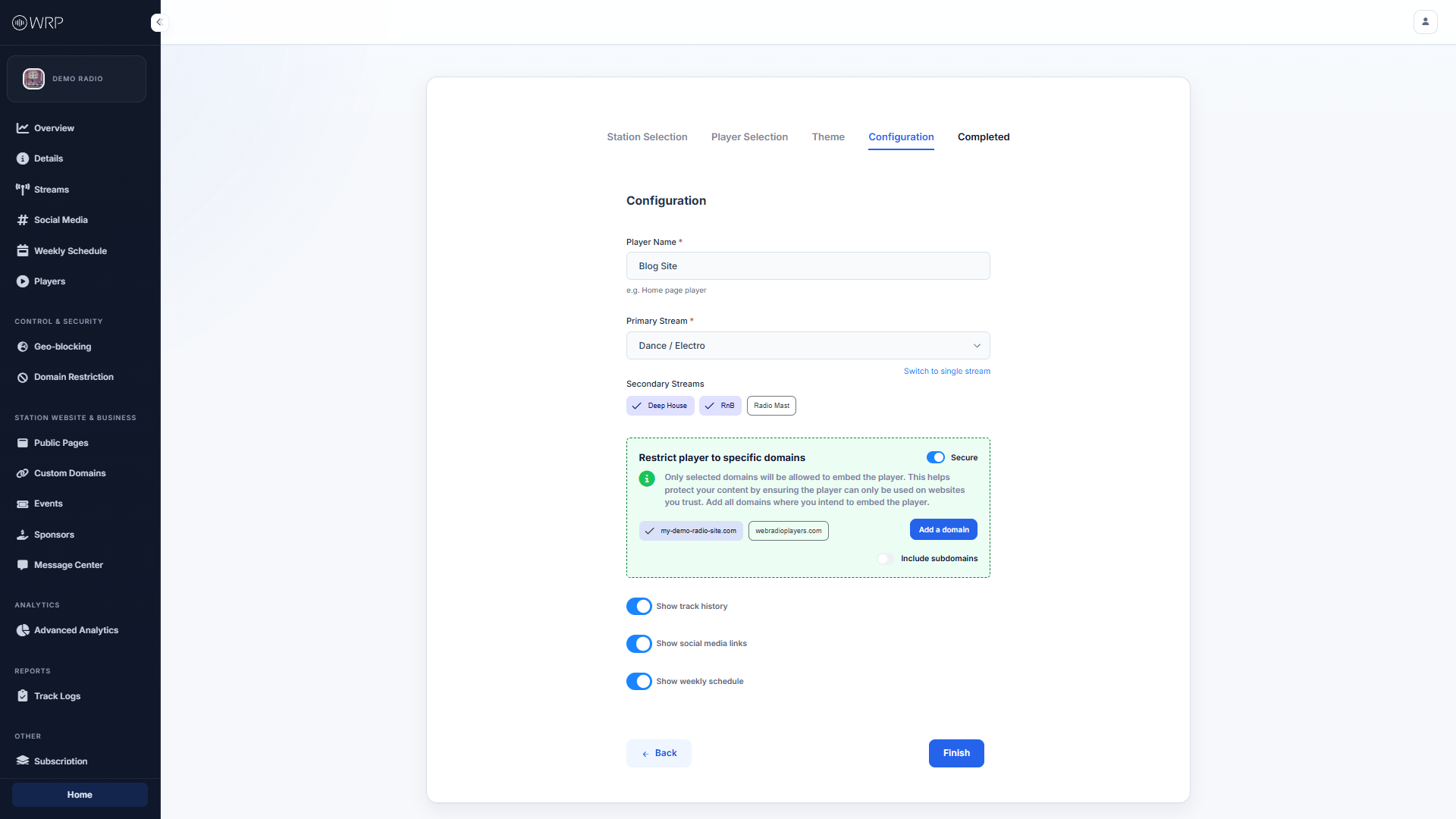
The **Configuration** step is where you define exactly how your player functions. Here, you will connect your audio sources, toggle visual features on or off, and secure your widget from unauthorized use.
 ## Audio Routing
Configure which streams your listeners can access directly from this widget:
* **Player Name:** Give your player an internal name (e.g., *Blog Site* or *Homepage Player*). This is just for your own organization and won't be visible to listeners.
* **Primary Stream:** Select the default audio stream that will play as soon as the user interacts with the player.
* **Secondary Streams:** If you want to offer a multi-channel experience, select additional active streams here. Listeners will see a menu inside the player allowing them to switch between these channels instantly.
* *Note: If you only want a simple, one-channel widget, click the **Switch to single stream** link beneath the Primary Stream dropdown.*
## Domain Security
To protect your bandwidth and prevent third parties from embedding your player on unauthorized websites, we highly recommend utilizing the **Domain Restrictions** feature.
1. Toggle the **Secure** switch in the green box to the active position.
2. Click **Add a domain** and enter the exact website address where you plan to embed this player (e.g., `webradioplayers.com`).
3. **Include subdomains:** Toggle this on if your site uses subdomains (like `blog.yourwebsite.com` or `shop.yourwebsite.com`) so the player works seamlessly across your entire network.
**Security Tip:** If Domain Restrictions are enabled and someone attempts to paste your embed code on a non-approved website, the player will automatically block playback and refuse to load.
## UI Feature Toggles
Depending on the layout you chose during the Player Selection step, you can toggle specific interface elements on or off to keep your widget looking perfectly clean:
* **Show track history:** Displays a list of recently played songs so listeners can discover new music.
* **Show social media links:** Displays the clickable icons you set up on your [Social Media](/station/social-media) page.
* **Show weekly schedule:** Displays your upcoming broadcast calendar based on your configured [Weekly Schedule](/station/weekly-schedule).
Once your settings are dialed in, click the blue **Finish** button in the bottom right corner to save your player and generate your embed code!
## Audio Routing
Configure which streams your listeners can access directly from this widget:
* **Player Name:** Give your player an internal name (e.g., *Blog Site* or *Homepage Player*). This is just for your own organization and won't be visible to listeners.
* **Primary Stream:** Select the default audio stream that will play as soon as the user interacts with the player.
* **Secondary Streams:** If you want to offer a multi-channel experience, select additional active streams here. Listeners will see a menu inside the player allowing them to switch between these channels instantly.
* *Note: If you only want a simple, one-channel widget, click the **Switch to single stream** link beneath the Primary Stream dropdown.*
## Domain Security
To protect your bandwidth and prevent third parties from embedding your player on unauthorized websites, we highly recommend utilizing the **Domain Restrictions** feature.
1. Toggle the **Secure** switch in the green box to the active position.
2. Click **Add a domain** and enter the exact website address where you plan to embed this player (e.g., `webradioplayers.com`).
3. **Include subdomains:** Toggle this on if your site uses subdomains (like `blog.yourwebsite.com` or `shop.yourwebsite.com`) so the player works seamlessly across your entire network.
**Security Tip:** If Domain Restrictions are enabled and someone attempts to paste your embed code on a non-approved website, the player will automatically block playback and refuse to load.
## UI Feature Toggles
Depending on the layout you chose during the Player Selection step, you can toggle specific interface elements on or off to keep your widget looking perfectly clean:
* **Show track history:** Displays a list of recently played songs so listeners can discover new music.
* **Show social media links:** Displays the clickable icons you set up on your [Social Media](/station/social-media) page.
* **Show weekly schedule:** Displays your upcoming broadcast calendar based on your configured [Weekly Schedule](/station/weekly-schedule).
Once your settings are dialed in, click the blue **Finish** button in the bottom right corner to save your player and generate your embed code!