> ## Documentation Index
> Fetch the complete documentation index at: https://docs.webradioplayers.com/llms.txt
> Use this file to discover all available pages before exploring further.
# Embed in WordPress
> Easily add your player to WordPress using our official plugin or a Custom HTML block.
WordPress users have two options for embedding a player. We highly recommend using the official plugin, as it provides native shortcodes, a global sticky player feature, and ensures your player code isn't stripped out by overzealous security themes.
Make sure you have the **WordPress** tab selected on your Completed screen inside the WebRadioPlayers dashboard to grab your Player ID.
## Method 1: The Official Plugin (Recommended)
Click the blue **Download Plugin** button on the WebRadioPlayers dashboard to get the `.zip` file, or search for *WebRadioPlayers* directly in your WordPress Plugin directory. Install and activate it.
In your WordPress admin dashboard, navigate to **Settings > Web Radio Players**.
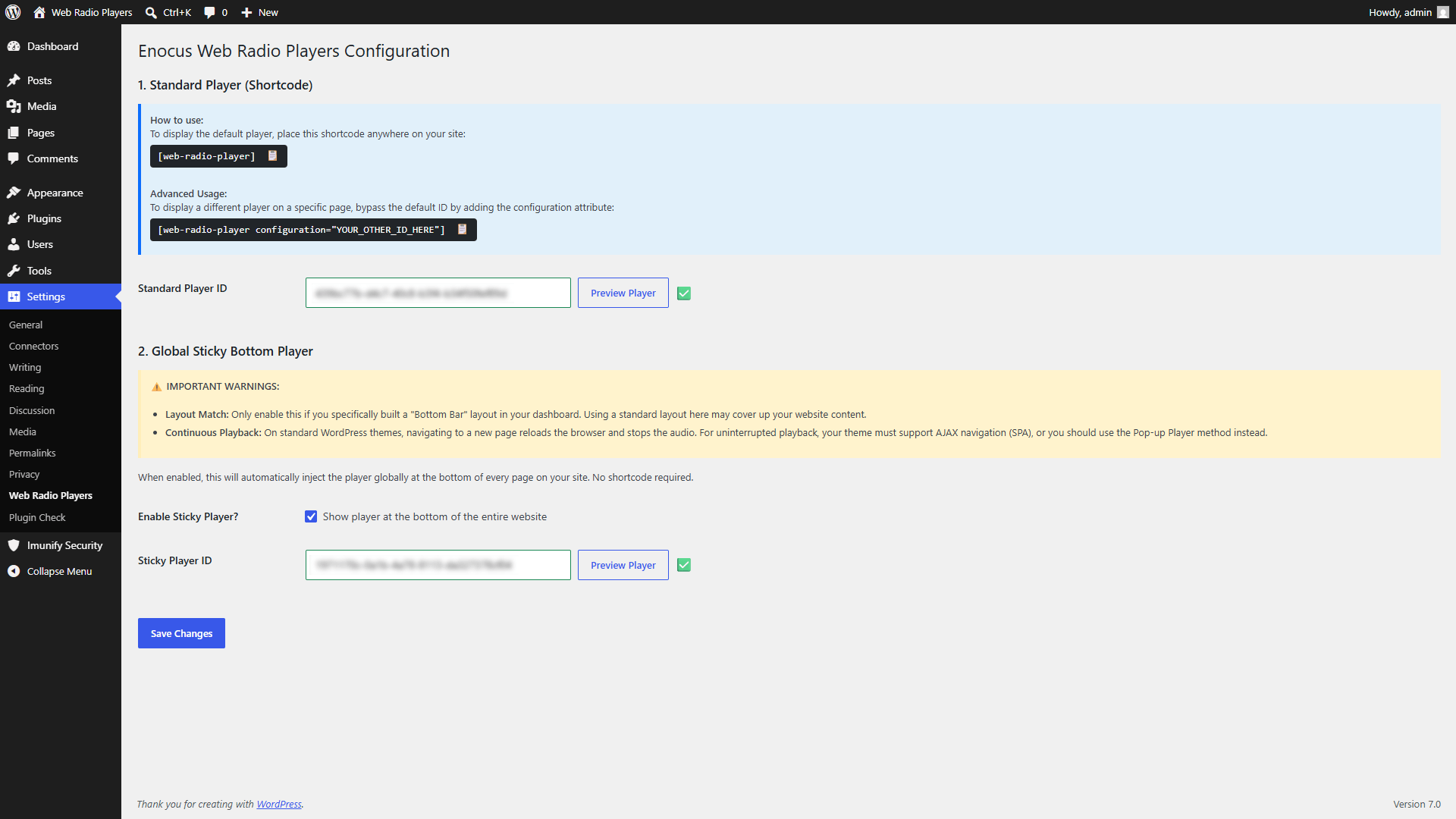 You have two different ways to deploy your player using the plugin:
### Option A: Standard Player (Shortcode)
Best for placing players inside specific blog posts, pages, or sidebar widgets.
* Paste your Unique Player ID into the **Standard Player ID** field.
* Click **Preview Player** to verify the connection. If the ID is valid, a green checkmark will appear.
* Simply type the shortcode `[web-radio-player]` anywhere on your site to display it.
* *Advanced:* If you have multiple streams (e.g., a dedicated Jazz player for one page and a Rock player for another), you can bypass the default ID by using: `[web-radio-player configuration="YOUR_OTHER_ID_HERE"]`.
### Option B: Global Sticky Bottom Player
Automatically injects a persistent player at the bottom of every page on your website without needing to place any shortcodes.
* Check **Enable Sticky Player** and paste your ID into the **Sticky Player ID** field.
**Sticky Player Caveats:** 1. **Layout Match:** Make sure the player layout you built in WebRadioPlayers is a horizontal "Bottom Bar" design (like Stealth or Horizon). Using a large, vertical card layout here might cover up important website content. 2. **Continuous Playback:** Standard WordPress themes reload the browser when a user navigates to a new page, which will stop the audio. For truly uninterrupted playback, your theme must support AJAX navigation (SPA). If it doesn't, we highly recommend using the [Pop-up Window](/players/embed-popup) method instead.
Click the blue **Save Changes** button at the bottom of the screen to push your player live.
***
## Method 2: Custom HTML Block (Alternative)
If you prefer not to install another plugin, you can embed the player directly into a specific page or post using native WordPress blocks.
1. Open your WordPress page editor (Gutenberg).
2. Add a new **Custom HTML** block where you want the player to appear.
3. Copy the combined HTML code block from your WebRadioPlayers dashboard and paste it into the block.
4. Click Preview or Publish.
**Theme Conflicts:** Some WordPress themes or caching plugins (like Autoptimize) may strip `
You have two different ways to deploy your player using the plugin:
### Option A: Standard Player (Shortcode)
Best for placing players inside specific blog posts, pages, or sidebar widgets.
* Paste your Unique Player ID into the **Standard Player ID** field.
* Click **Preview Player** to verify the connection. If the ID is valid, a green checkmark will appear.
* Simply type the shortcode `[web-radio-player]` anywhere on your site to display it.
* *Advanced:* If you have multiple streams (e.g., a dedicated Jazz player for one page and a Rock player for another), you can bypass the default ID by using: `[web-radio-player configuration="YOUR_OTHER_ID_HERE"]`.
### Option B: Global Sticky Bottom Player
Automatically injects a persistent player at the bottom of every page on your website without needing to place any shortcodes.
* Check **Enable Sticky Player** and paste your ID into the **Sticky Player ID** field.
**Sticky Player Caveats:** 1. **Layout Match:** Make sure the player layout you built in WebRadioPlayers is a horizontal "Bottom Bar" design (like Stealth or Horizon). Using a large, vertical card layout here might cover up important website content. 2. **Continuous Playback:** Standard WordPress themes reload the browser when a user navigates to a new page, which will stop the audio. For truly uninterrupted playback, your theme must support AJAX navigation (SPA). If it doesn't, we highly recommend using the [Pop-up Window](/players/embed-popup) method instead.
Click the blue **Save Changes** button at the bottom of the screen to push your player live.
***
## Method 2: Custom HTML Block (Alternative)
If you prefer not to install another plugin, you can embed the player directly into a specific page or post using native WordPress blocks.
1. Open your WordPress page editor (Gutenberg).
2. Add a new **Custom HTML** block where you want the player to appear.
3. Copy the combined HTML code block from your WebRadioPlayers dashboard and paste it into the block.
4. Click Preview or Publish.
**Theme Conflicts:** Some WordPress themes or caching plugins (like Autoptimize) may strip `